Scribblings and Writings
✤ FEATURED ✤
✤ RECENT POSTS ✤
What Tools Do You Use For Your Creative Processes?
Deep Dive - What Tools Do You Use For Your Creative Processes?
This is a question that people generally ask creatives. I do a lot of different random things, and I've been changing up my workflow a lot this month to try and make it more efficient.
And, when it comes to changing things up, I have tried so many different programs, systems, and workflows. One thing that I've found is integral for my brain is that I need things that are modular. Once I get used to something, I start finding where it's breaking down and not working as well for me. I'm not going to bore you with listing all of the things that I've tried, unless it comes up when talking about a tool.
September is my birth month, and true to my Virgo star sign, I am meticulous and plan things incredibly in-depth. I am also an anxious do-er, haha! So, I broke my "tools of the trade" down by type of artwork! I figured this would be a good thing to do a deep dive on this month. I went by alphabetical order of task type. This just happened to place digital art at the top, so let's start our deep dive there!
Digital Art Tools - Clip Studio Paint and Affinity
Clip Studio Paint, my love! I've been using this program for years. I actually first came across it before it was ever called Clip Studio Paint— back when it was Manga Studio 3. I know this program very well, and yet I'm still constantly finding new things about it. I love that the workspace is modular and that I can tweak it to be what I need.
This is what my workspace looks like:
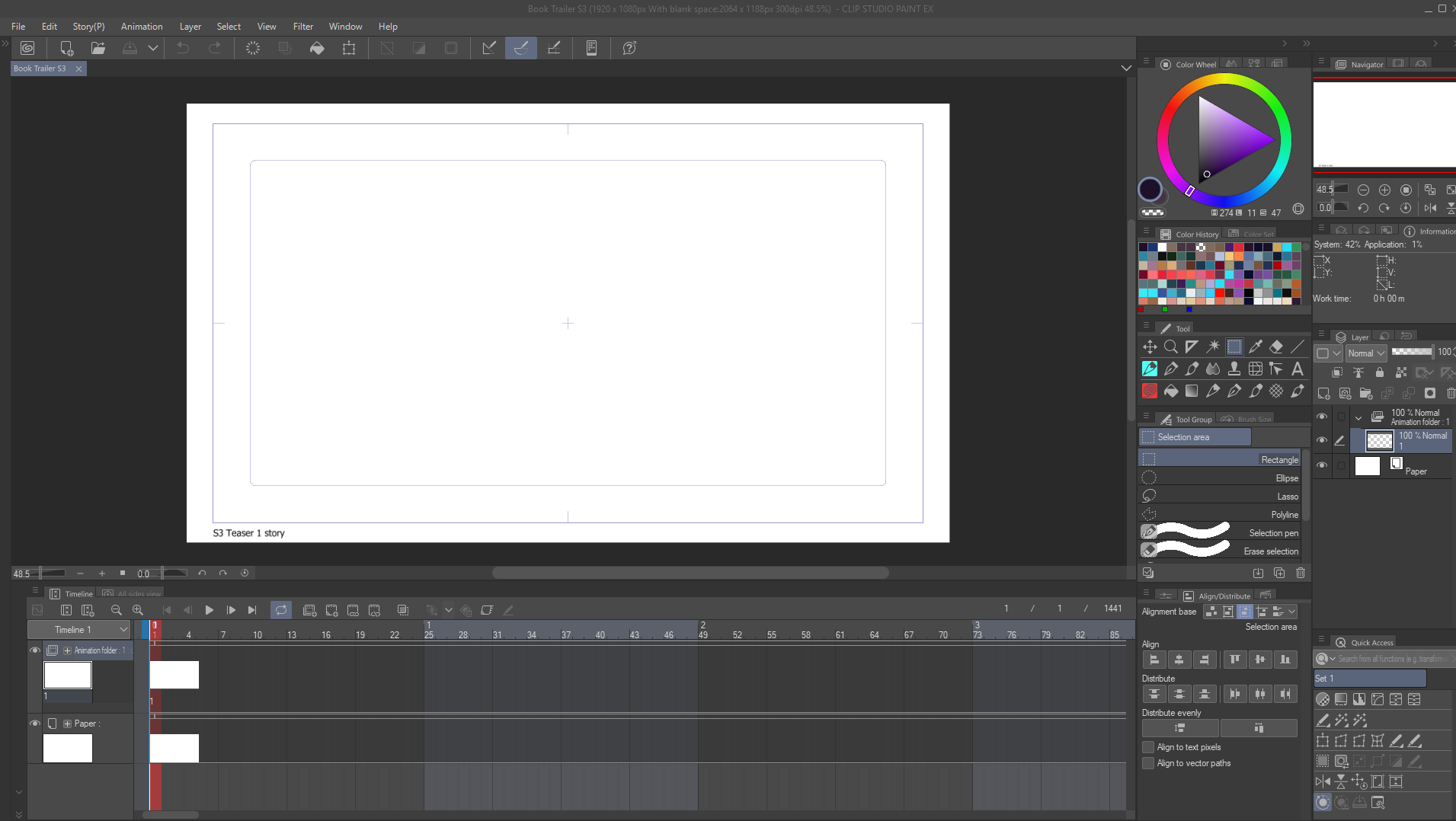
As of right now, this is the workspace layout that I've been using for a while. I've been thinking about saving it and trying to rearrange, but I don't know that I want to throw off my workflow when I'm as busy as I've been.
In this particular view, the timeline is popped up to see the animation layers. When I'm not working on animations, I am able to collapse it to a tiny minimized screen. That's really handy; I like animating in Clip Studio Paint because I am already comfortable with the layout and I have access to all of the tools I already use. That being said, I'd love to learn how to do rigging and get into more advanced animation.
In terms of Affinity, I'm way less confident with it. I mostly use it for formatting and layout right now. But, I just found out about a program called Lacuna that I may try out, since that will make formatting a lot easier. Here's the layout of Affinity:
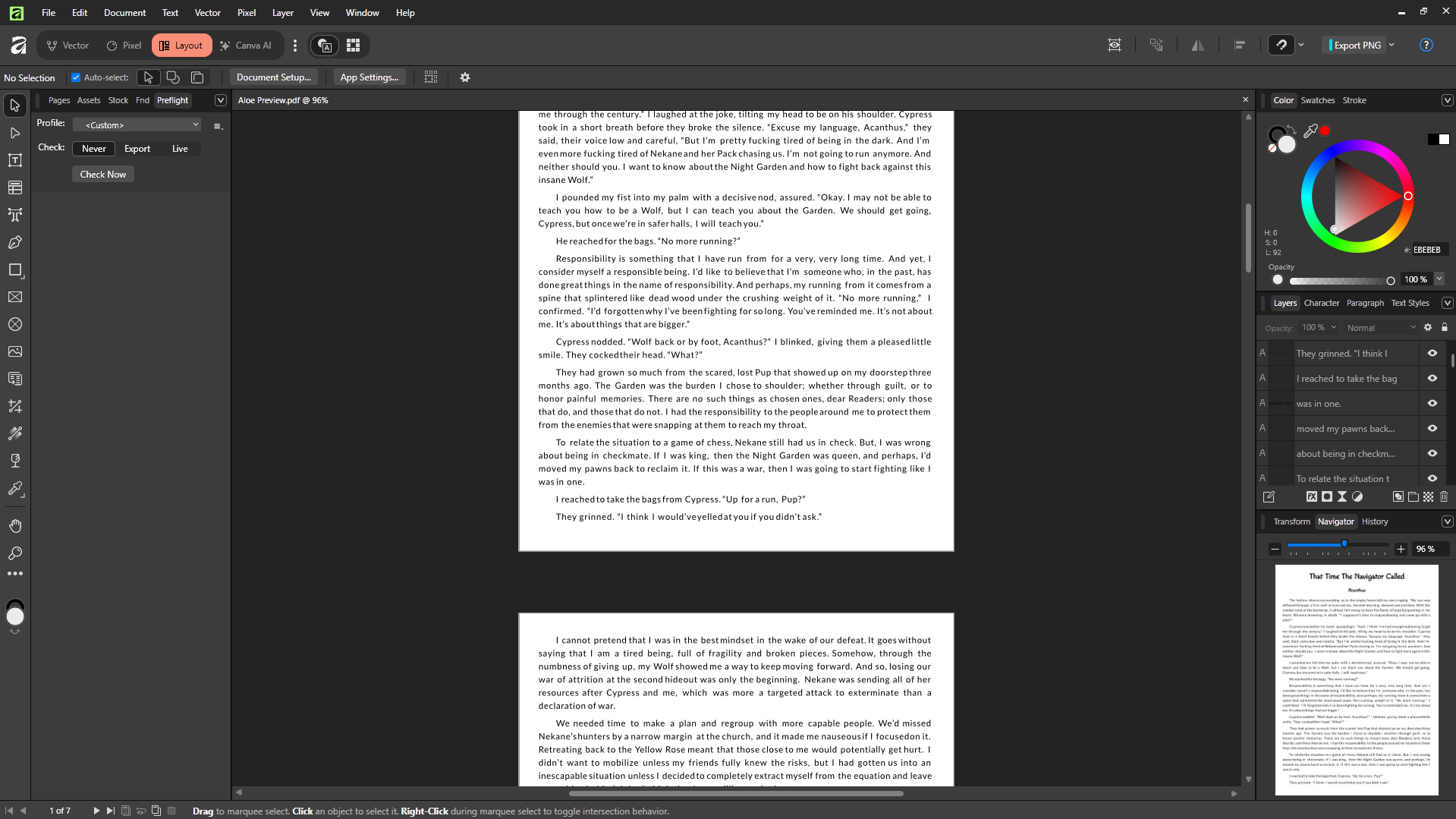
Affinity is very easy to use once you know what you're looking at. I must admit, I do miss InDesign for a few things, but Affinity is free. Nothing beats free, especially when I'm not offering formatting services to other people. And, with the way that it allows me to create EPUB files, it's become integral to my publishing tools.
I also love how elaborate I can get with my static layouts for print, and have it all upload correctly.
I can hear you asking -- But Artemis, why don't you use Photoshop/InDesign?
Four words.
I fucking hate Adobe.
It's expensive, they keep adding AI to it, they act entitled to their customer base since they're industry standard... I can make my art in any program I choose to use, so I choose not to use Adobe. That's where it starts and ends.
Productivity and Planning - Obsidian
Obsidian, my love!
I am still very new to Obsidian, but I have quickly fallen down the rabbit hole and have made this one of the integral pieces of my workflow. I currently am using Obsidian for multiple workflows. The main ones are writing and tasks/notes. Since writing is its own section below, I'll talk about the planning stuff here.
The way that Obsidian functions is by creating a folder— called a vault— and making a series of notes within. It's basically a directory for your note-taking things, coded in markdown (which can be read by any app that uses it). For context, Discord uses Markdown for formatting. This is really nice because it means that, even if I don't have access to the app itself, I can still access and read the important aspects of the files. My files won't get lost as easily.
Obsidian has a robust userbase and there are a million plugins that are free to use. There's so many ways to make Obsidian your own via plugins. The task/productivity vault that I'm about to walk us through is achieved with plugins — mostly Task Notes.
It also has cloud sync for access on multiple devices and backup. You can choose to pay Obsidian for their cloud, or you can point it to a third party system. While I was trying it out, I've had Obsidian pointed towards my Google Drive, and have had no problems opening my vaults across multiple devices. It's also saved me a ton of money in terms of task tracking, because it does literally everything that I was paying for, for ClickUp.
All of that said, I literally have my Obsidian set up in two different vaults (soon to add a third.) This is what my task vault looks like:
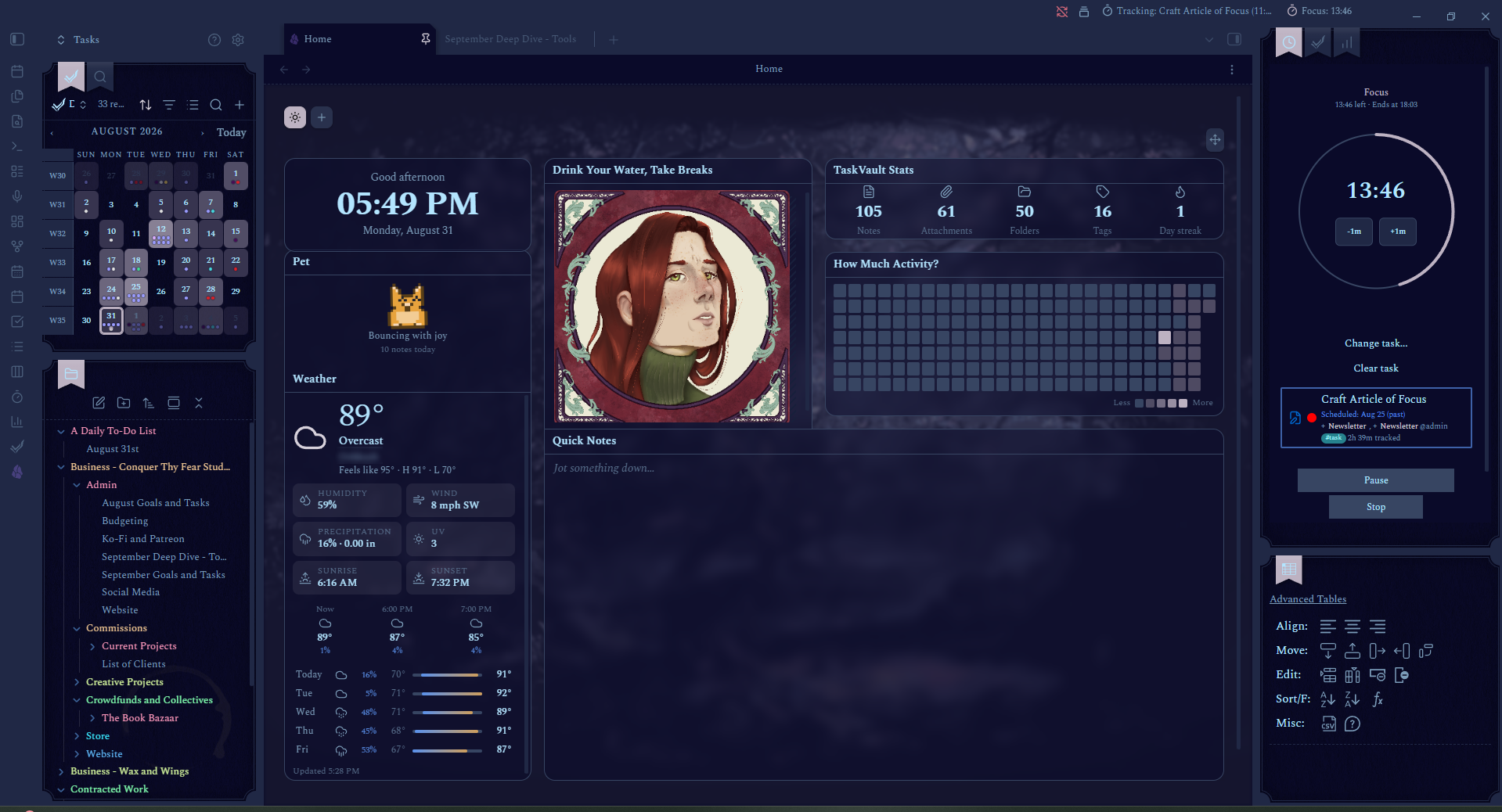
The setup looks complicated, but it's fairly simple. Let's break it down.
On the left - I have my mini-calendar, which is connected to my Google Calendar, and I time-track with this. The Pomodoro tracker on the right integrates my time tracking with my Google Calendar, so I can see what tasks I worked on, when, at a glance. I can also attach events that are on my calendar to a task that I'm tracking. Behind the mini-calendar is the notes search.
The lower left is my folder tree. You can see my daily note (which is my task list for the day), some of my admin notes, and a few of my longer-term project folders here.
In the center, I have my active note — in this screenshot, it's my home page. I have it set up to show my what time it is at a glance (since this is always up on my screen. it's useful since I have multiple monitors), my favorite Acanthus drawing reminding me to drink water and take breaks, info on my vault, when I was most active in the vault based on a heatmap, and a quick notes jot.
You can see another tab behind this, which happens to be this deep dive article. Usually, I'll have my daily note open as well, but I closed it at some point before taking this screen shot. Here's what that looks like:
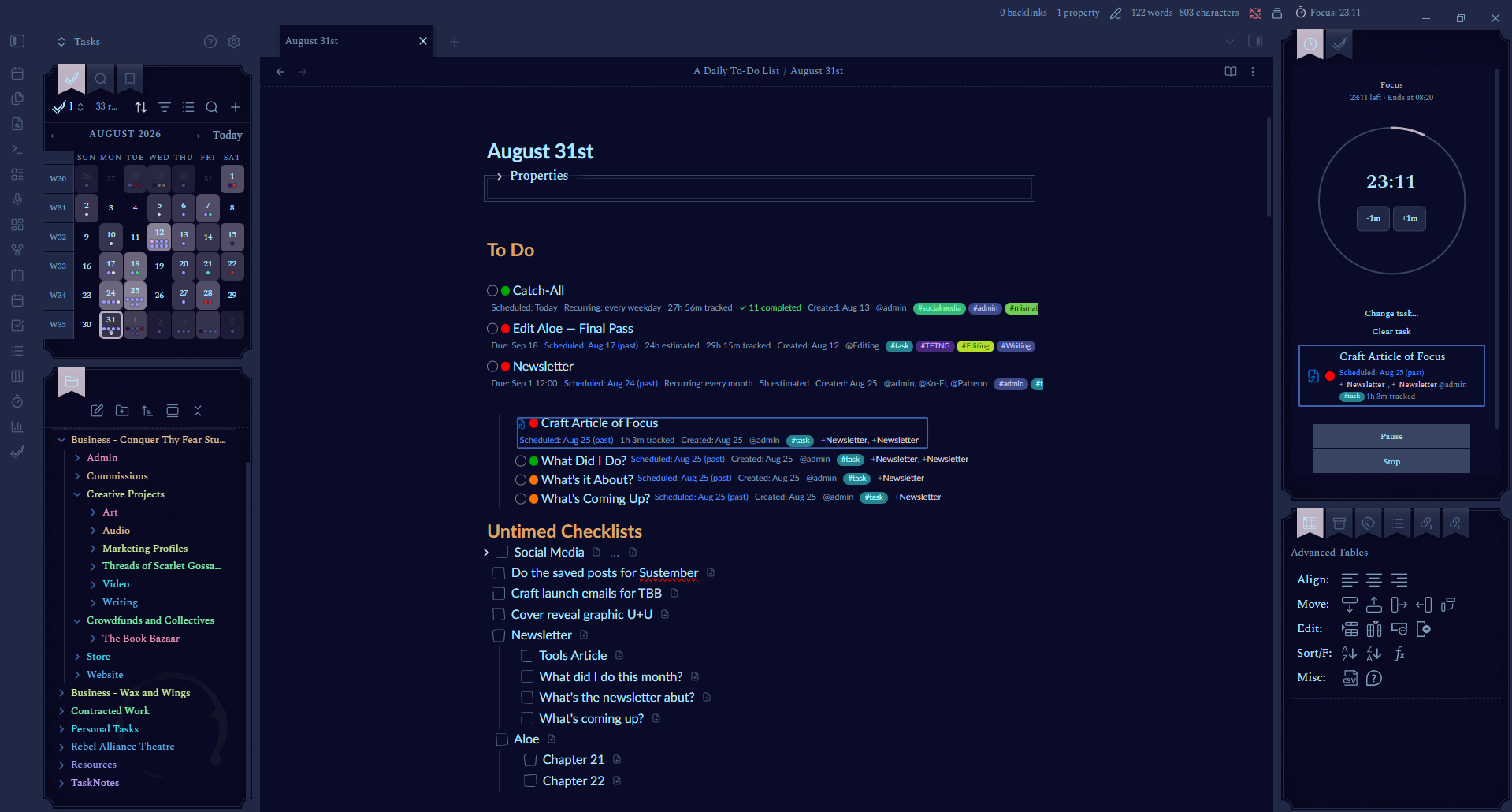
You can see that I have some tasks visible in a specific tracking checklist, as well as untimed tasks. The colored dot next to the empty circle tells me what level priority the task is. I also can see when I scheduled to finish it, when it's due, and how long it's expected to take at a glance. I can also use tags to tell me what project it belongs to at a glance.
I have my calendar at a glance here, slightly bigger (though with it docked on the left I might take it out of my daily note template.) Beneath that, you can see my Monthly Goals and Tasks. That is an embedded note, which means I wrote the note and told the program to place it into my daily note. So, it auto-populates longer-term projects that I've been tracking in other notes. This means that I can track the important stuff in multiple places by only editing one note.
The right, as I pointed out, is a pomodoro timer. You can see here that I have it tracking a task (Article of Focus, which is this article.) This means that it's recording my time based on that task. This is helpful, because I can see at a glance how long something has taken me. This is also really helpful for tracking time for paid work.
So, I can also keep track of my big, long-term projects this way. There are kanban boards and things like that as well (though I don't use the kanban boards.) Here's what a project layout looks like:
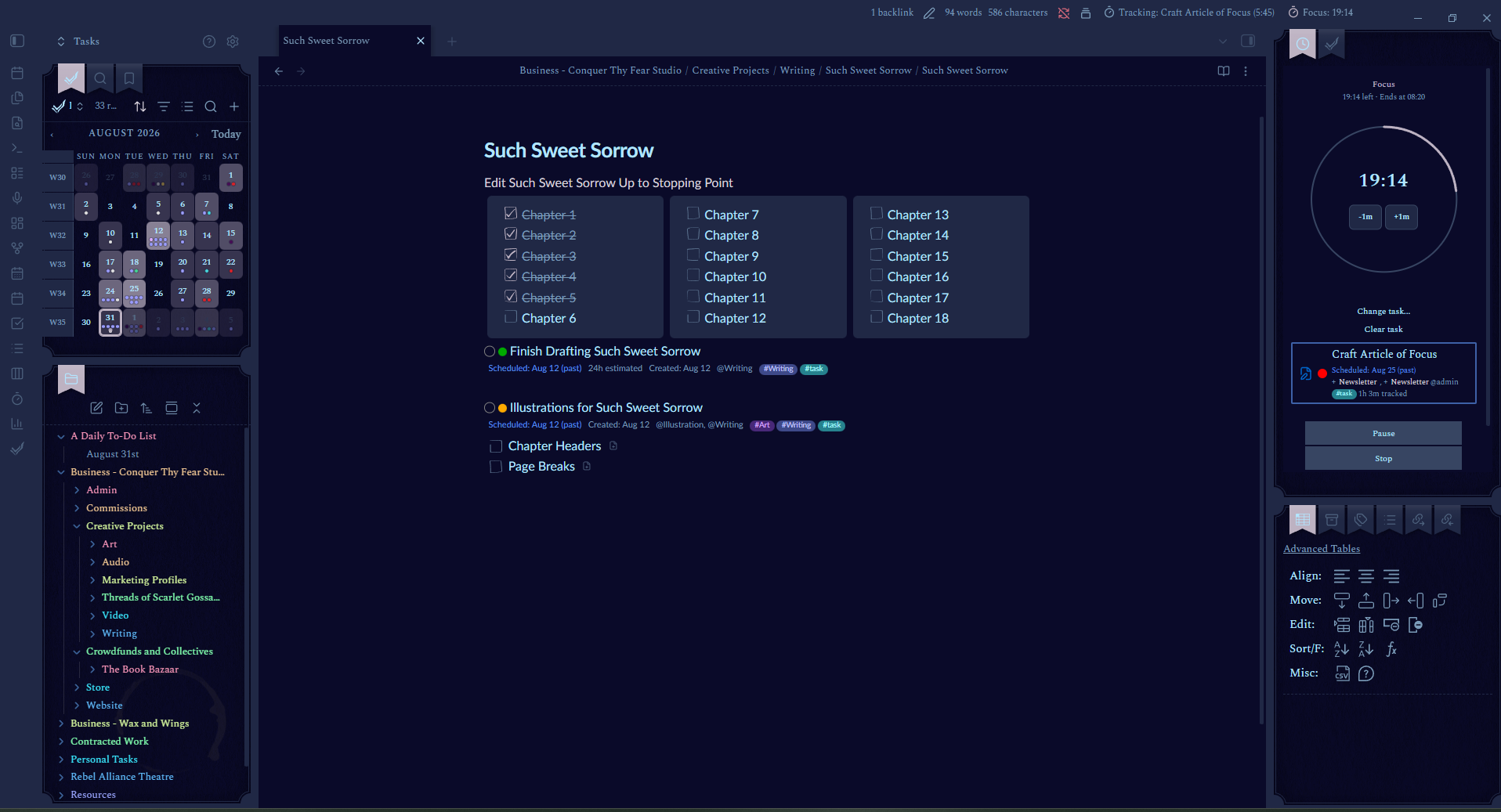
You can see that I have tasks listed underneath my chapter list, and it's about the same as the daily notes. So, that same structure works for both timed and untimed, daily, weekly, monthly, and per-project tasks.
Neat, right?
Traditional Art
If it isn't broken, don't fix it. I mostly work in watercolor and ink or mechanical pencil, but I also use gouache. When I paint with watercolor or gouache, I use pens that hold water inside to have a better control over the flow of the paint.
Writing - Ellipsus and Obsidian
Ellipsus, my love! (There's a recurring theme, here, lol!) I use Ellipsus and Obsidian both for my writing workflow, and I quite like it. My Obsidian workflow is admittedly extremely barebones right now, and I'd like to develop it into something that I utilize more, But, I need more time to play around with plugins. So right now, I'm working with a bare-bones setup in my writing vault. Since I just spent a long time talking about Obsidian, I'll start by sharing that.
I have a different theme for my writing vault so that I can tell what vault I'm looking at at a glance. Here's what the Night Garden Encyclopedia looks like (so far):
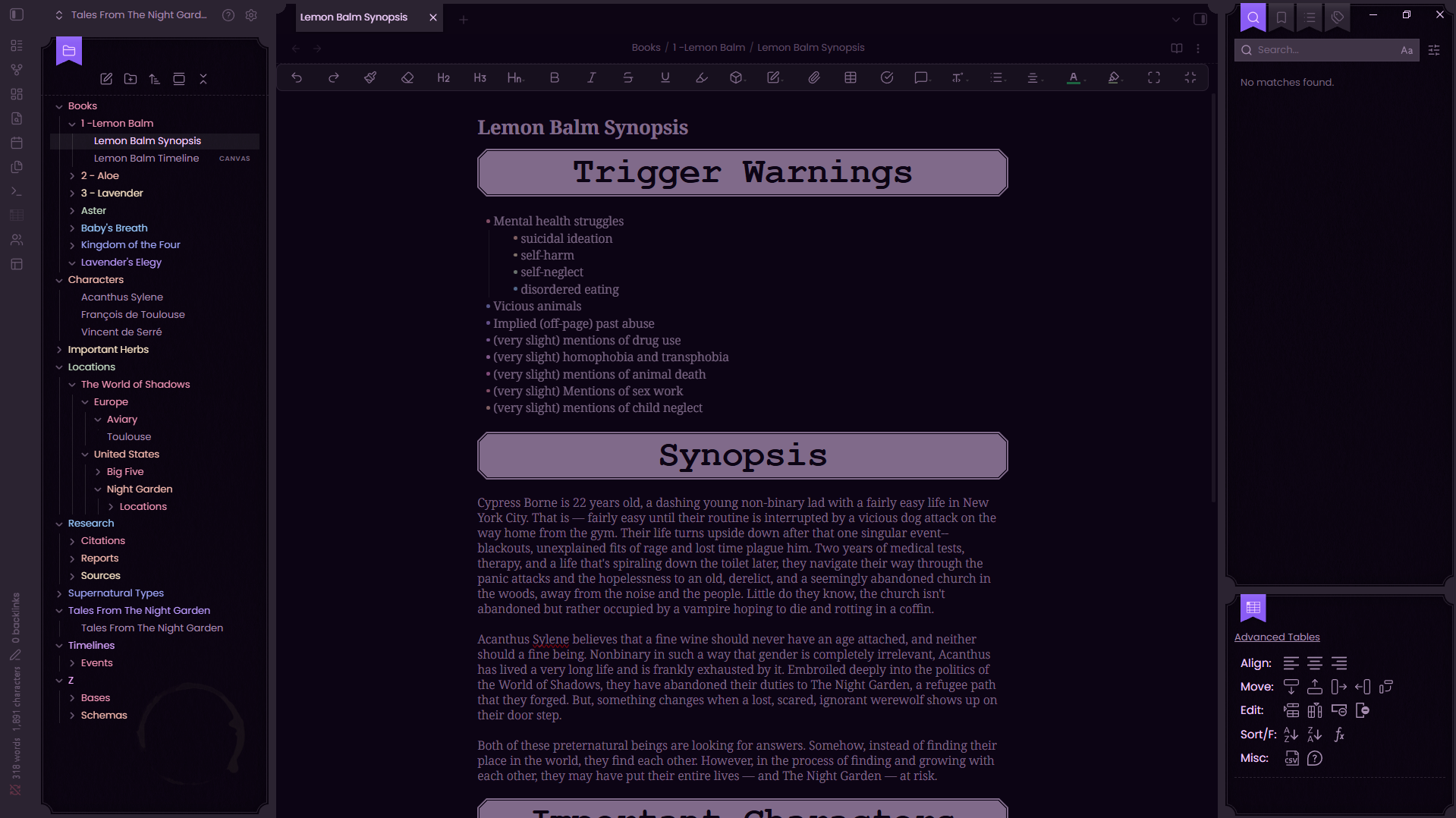
This vault is much more geared towards writing notes and backstories, so you can see the bar at the top of the center screen— that's a plug-in to add formatting options to the editor.
There are also graph views and canvas modes, but I don't have any set up, so I don't have examples. But, one of the coolest things plugins I have in this vault is Charted Roots. What that plugin does, is it creates a database in the style of genealogy research for your series. (You can use it for actual genealogy research, as well, but it's SO powerful for a series bible.) I don't want to spend too much more time on Obsidian, because I could gush about it all day, so let's move on to Ellipsus.
Ellipsus is an anti-AI, cloud-based drafting and co-op writing platform. On first glance, it is aesthetic-forward and a really powerful tool to use. Full disclosure, I've paid for Plus, so mine does look a bit different from default, but here's the folder system for Such Sweet Sorrow:
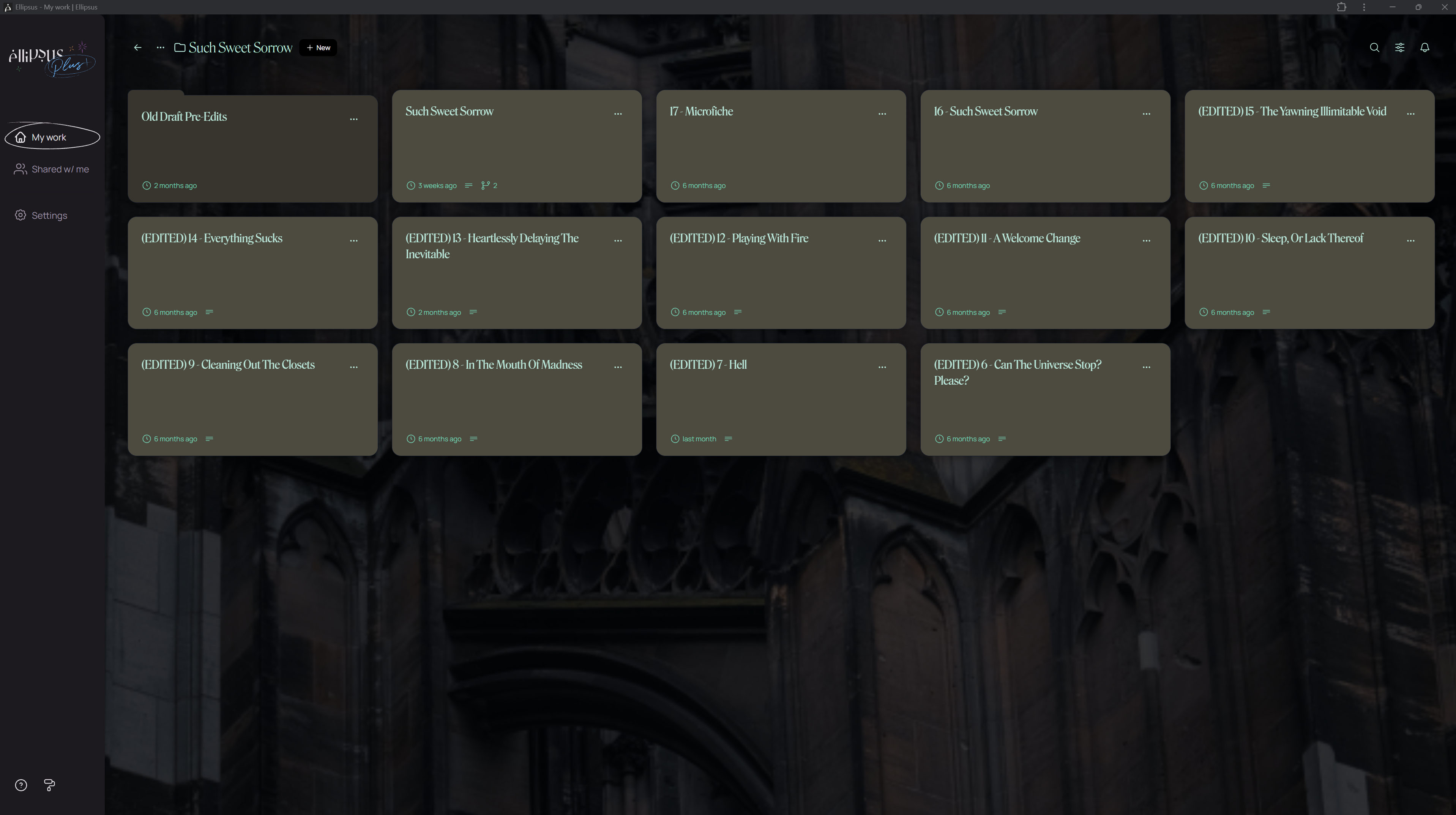
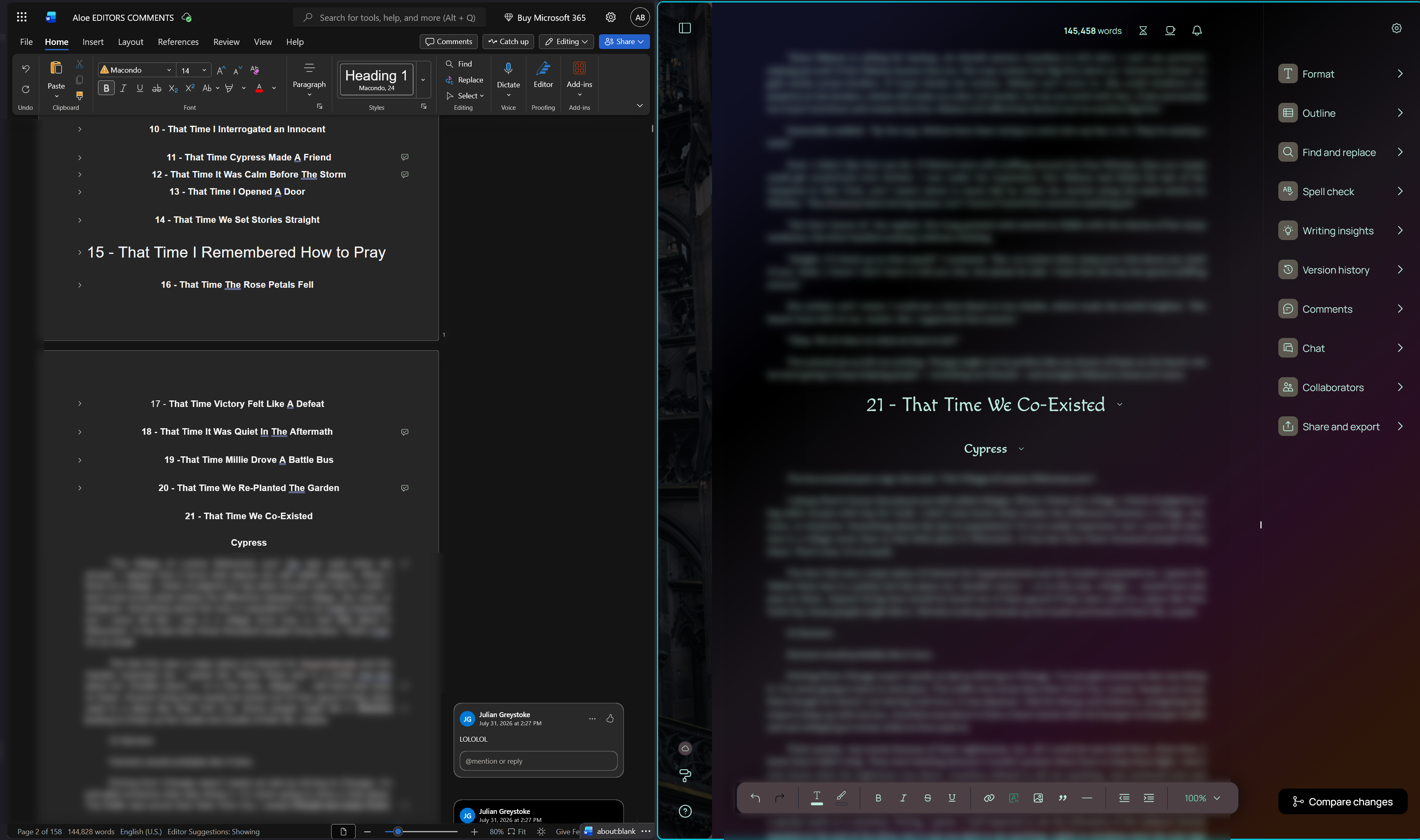
I'm currently working on editing the chapters into draft two, and moving everything into one document. Here's what the editor looks like:
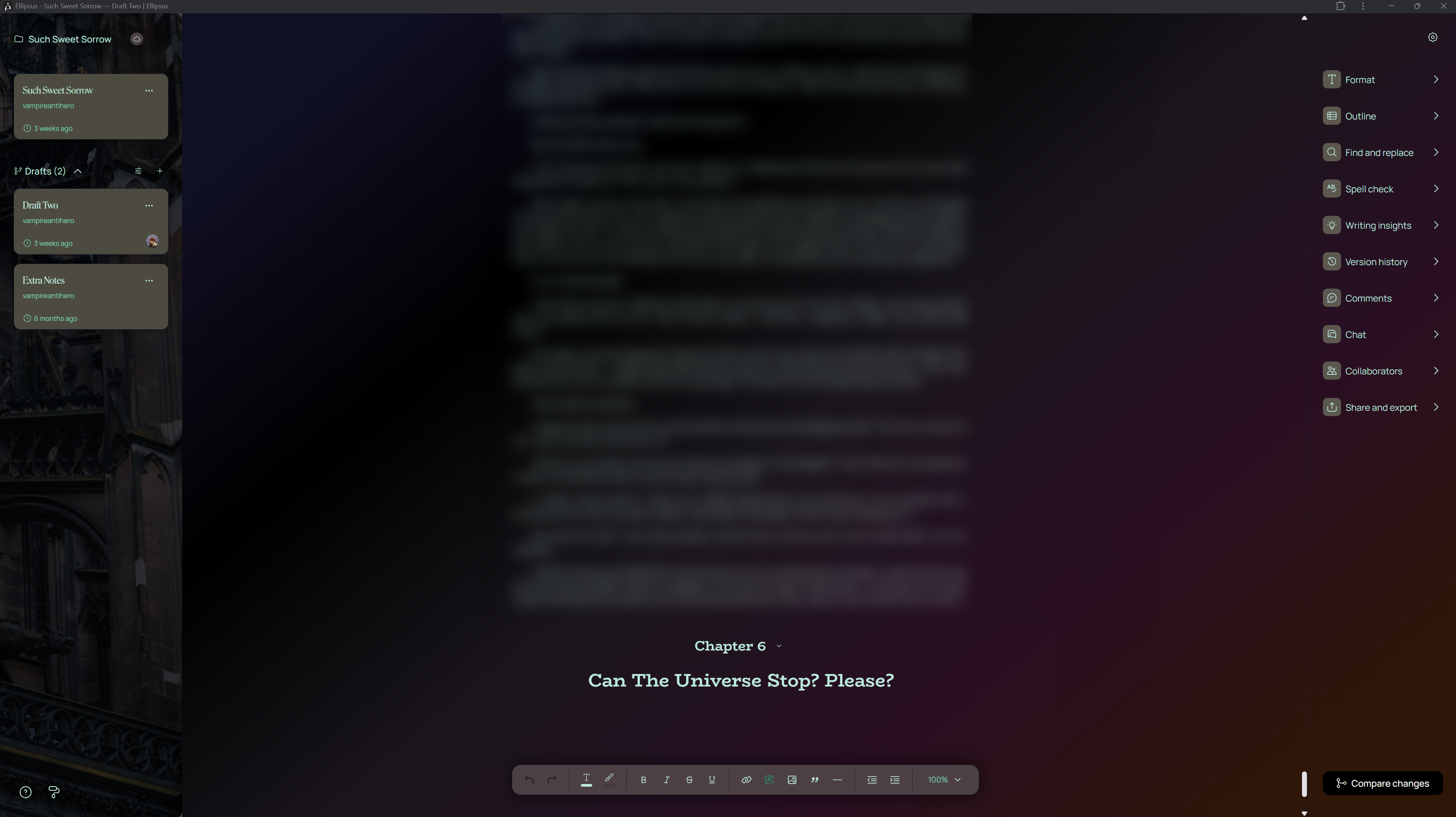
So you can see the editor is really nice. There's a whole bunch of features that make it great to use; you can collapse chapters to make things easier to focus on, for one. You can also separate files into different drafts— you can see this on the left-hand side. My "notes" draft looks completely different. than my chapter here. You can also click "Compare changes" and see the difference between your main draft and the current draft you're editing. Here's an example from chapter 1 of Aloe:
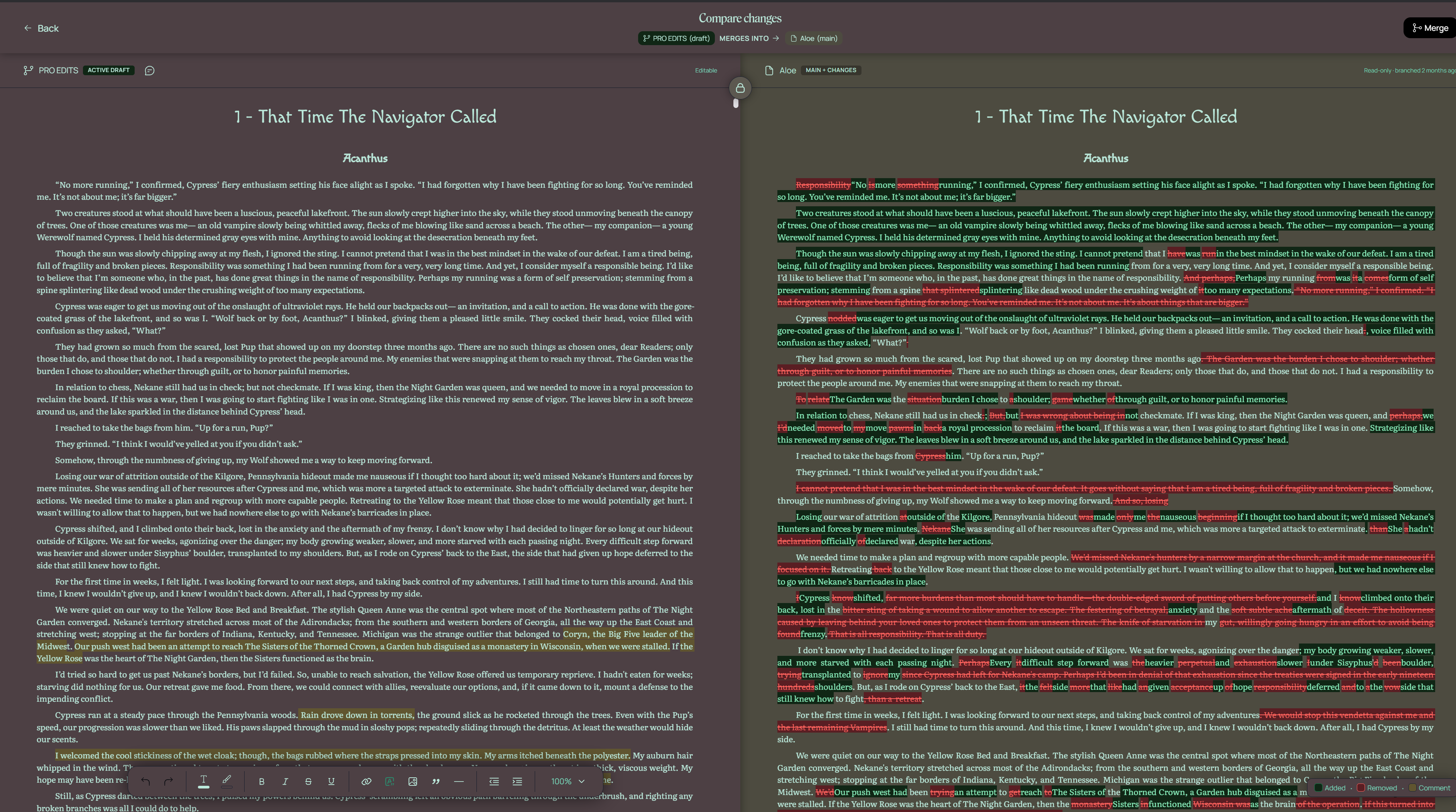
The "Compare Changes" screen shows your adds in green and your subtracts in red. The yellow highlight is a comment on that draft. You can also edit in this screen, if you want to, and it tells you how old the main draft is compared to this draft. This is really handy when you're committing to changes.
But, hands down, the best feature is a Plus feature— the Writing insights.
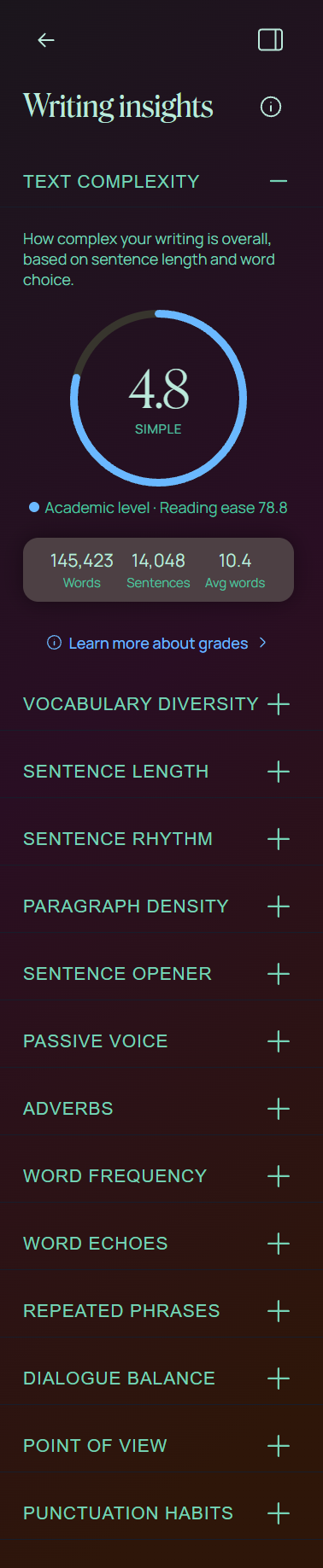
The "Vocabulary density" dropdown tells you the ratio of unique words to total words in your manuscript. In Aloe's case, there's 9,817 unique words out of 145,336— in other words,7% of the words in the manuscript are unique. This means that my writing is likely not very colorful or varies, but that makes it simpler to understand. If I wanted to, I could take this information to a thesaurus and up my sentence diversity by a fair bit.
"Sentence length" tells you how your sentences break down by word count— short (1-8 words), medium (9-16), long (17-24), or very long (over 25 words.) In Aloe's case, this breaks down to 45% short, 38% medium, 14% long, and 3% very long. If anything this shows me where I might want to break a sentence apart or reword something. If you click on a category, it will highlight what sentences in the draft apply. You can also toggle on the preview, and it will show you what the sentence is categorized under in the draft by highlight color.
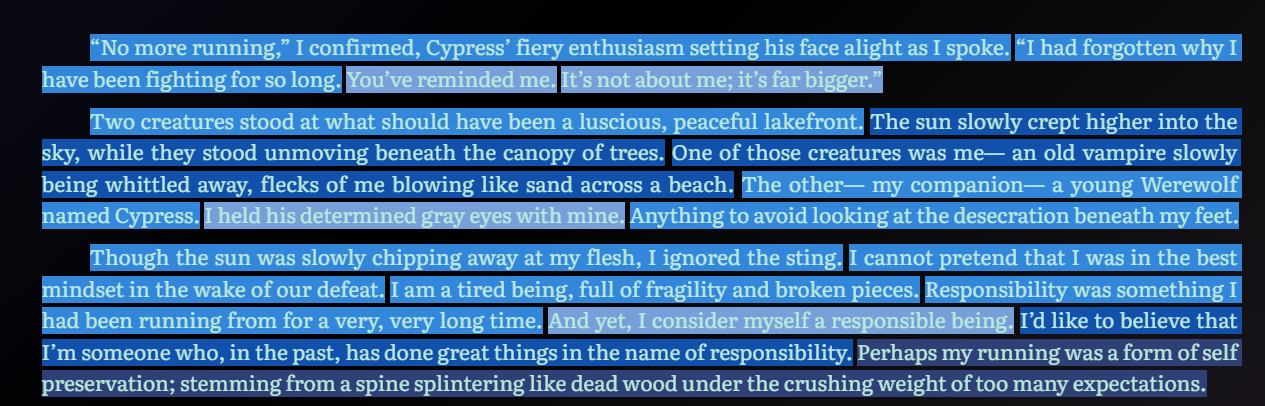
The "sentence rhythm" pairs well with this, because it shows you a sample of how long each sentence in and what that cadence looks like. If something looks particularly short or long, you can click on the bar to jump to it in the draft.
Paragraph density is a heat map. Each dot in the heat map shows how light or dense the paragraph reads.
"Sentence Opener" is one I will be leaning on when I get to the final pass edits after this "big notes address" pass. You can see why:
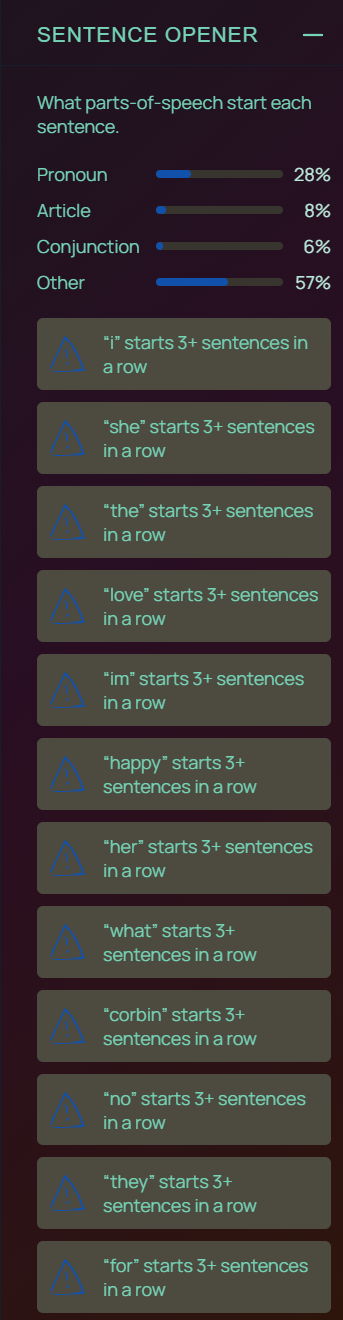
Not only does it force you to be more aware of how you open a sentence, it also warns you when you have sentences that start with the same word in a row. This is so, so useful.
"Passive voice" id what it sounds like. It tells you the ratio of sentences where the subject receives the action instead of performing it. This is suggested to be beneath 10%; Aloe's got 1,003 of 14,048, or roughly 7%, which tells me I'm in a good place for that.
Adverbs tell you how much of each adverb you have. There are 1,844 in Aloe, or roughly 13 per 1,000 words. (My worst one is 'really' at 93x through the doc.) When I do final line-through, I'll be paying attention to those adverbs and cutting where they don't make sense.
"Word frequency" and "Word echoes" are some of the most helpful insights here.
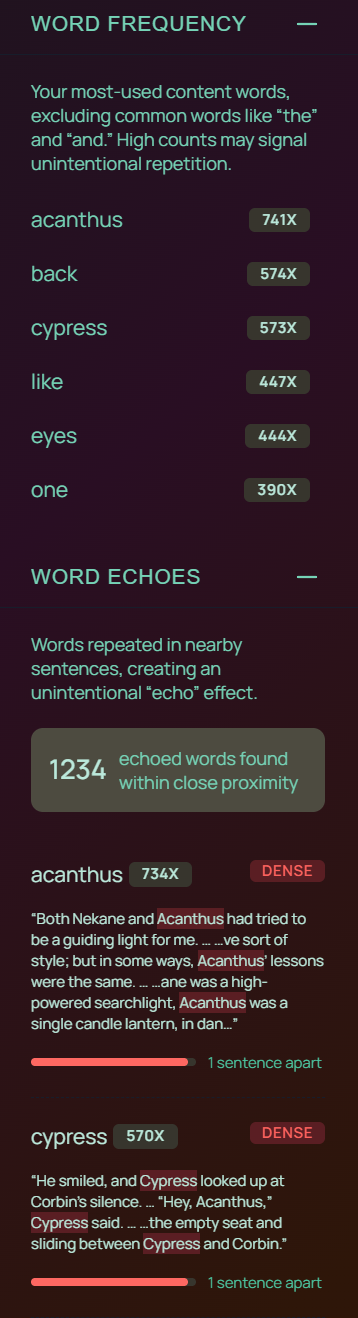
You can see my most common words in Aloe; "Acanthus" and "Cypress" are both names, which is something I'd expect considering these are main characters. However, I need to pay attention to back, like, eyes, and one. Word echoes show how often a word repeats within a group of sentences. (Again my most common are Acanthus and Cypress, the main characters) But, look at the way it's structured— if I click one of these word groups, it will highlight every instance of that word and how close in proximity it is. As someone who often repeats words on accident, this is highly valuable to me. I'll be using this a lot in the final work-through.
"Repeated Phrases" is also really useful for this reason (three of my most repeated phrases are "the yellow", "yellow rose", and "the yellow rose," which is the name of a bed and breakfast in the manuscript.)
"Dialogue balance" shows you the ration between dialogue and narration in the manuscript, and you can highlight dialogue. (32% to 68% for Aloe.)
"Point of View" is super helpful as well— it separates the sentences into first, second, and third person, so you can see it at a glance.
"Punctuation" shows you your density of expressive punctuation per 1,000 words. I've used this to cut back em dashes. You can also highlight with this (here, I'm highlighting question marks.)

I absolutely love the writing insights feature for Ellipsus. The cloud capability is really nice for me too, since I write across multiple devices. They're improving the program every day and I cannot wait to see what else they add to the mix.
So, I think I've rambled enough about the tools that I use for my craft! I hope you enjoyed this month's deep dive.

Subscribe to our Mailing List
Sub to my Newsletter
and get updates and release news, allowing me to make your world darkly beautiful, one thing at a time.
Copyright 2026. Conquer Thy Fear Studio, LLC. All Rights Reserved.